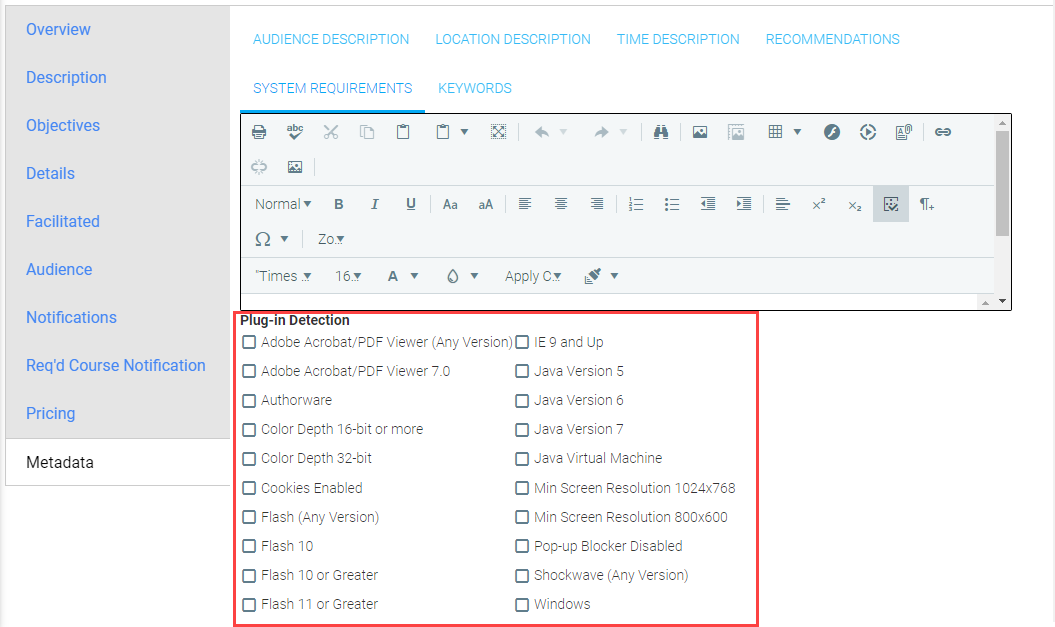
To set plug-in detection in a resource, go to Resources > Maintain Learning Resources. Use the Search function to find and select the course, then click the Edit button.
Go to the Metadata tab, then the System Requirements sub-tab. Scroll down to view all available plug-ins, and select the plug-ins required for this course.
Click Save.
If a user is missing a selected plug-in, the Take Course button will not appear on the user's screen. Once all the required plug-ins are in place, the Take Course button will appear, allowing the user to enroll.
Plug-In detection can also be set at the provider level. Note that plug-in requirements for an individual course takes precedence over the provider's requirements.
Go to Tools > Maintain Providers in the Navigation Bar of the Administrator's Console. Select a provider, and click the Edit button in the toolbar.
Go to the Plug-In Detection tab.
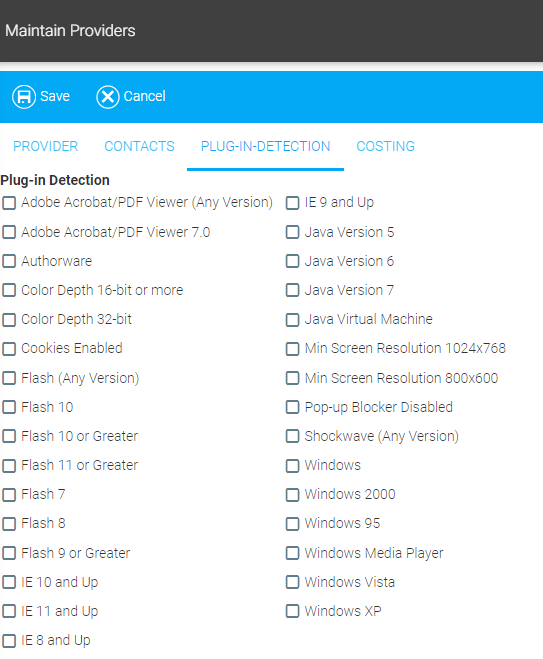
Select the check boxes to choose which plug-ins are required for this provider's courses. Click Save.